
Markdown task list
Markdown Task List: Turn - [ ] Into a Checklist You Actually Finish
A markdown task list is a checklist written in plain text — a - [ ] line in your notes. Here's how the syntax works across editors, why checklists buried in files get ignored, and how to turn every one of them into a real, checkable list on your Mac.
What is a markdown task list?
A markdown task list is a list of to-dos written with Markdown's checkbox syntax: a hyphen, a space, and a pair of square brackets. An empty box - [ ] marks something to do; - [x] marks it done. It's the same lightweight convention used for issues on GitHub and notes in Obsidian, so the file stays readable as plain text whether or not any app is open.
- [ ] Call Mom (fri)
- [ ] Regression-test P0 #dev
- [x] Send Q3 invoice
The exact behavior differs a little by tool. GitHub renders - [ ] as clickable checkboxes inside issue and README bodies. Obsidian shows them in reading view and lets you toggle them, and its search and queries can gather unchecked tasks across a vault. Plain editors — VS Code, BBEdit, TextEdit — treat the line as ordinary text, which is the point: nothing is hidden in a database.
Why a checklist buried in a file never gets done
Writing - [ ] is easy; the hard part is coming back to it. A task list only works when you can see the handful of things that are actually due today, in one place, without scrolling through five different notes. Notes are organized by topic — a meeting, a project, a journal entry — while tasks are organized by time. Those two shapes don't line up, so the checkboxes you wrote on Monday stay scattered across the vault and never surface when it matters.
The usual workaround is to copy tasks into a separate to-do app. That creates a second source of truth: now you maintain the note and the app, and the two drift apart. The moment you stop syncing them by hand, one of them is wrong.
Turn it into a checkable list on your Mac
Taskstick is a native macOS app that reads the Markdown files you already have and gathers every - [ ] line into a single list — Today, by date, or filtered by tag. It doesn't create a new database; the notes on disk stay the source of truth.
- Keep writing in Markdown. In any
.mdnote in your vault, add tasks the way you always do. - Open the vault in Taskstick. Each checkbox line becomes a task, with its date and tags read inline.
- Check it off in the list. Taskstick writes
- [x]straight back into the note — no copy, no paste, no second app.
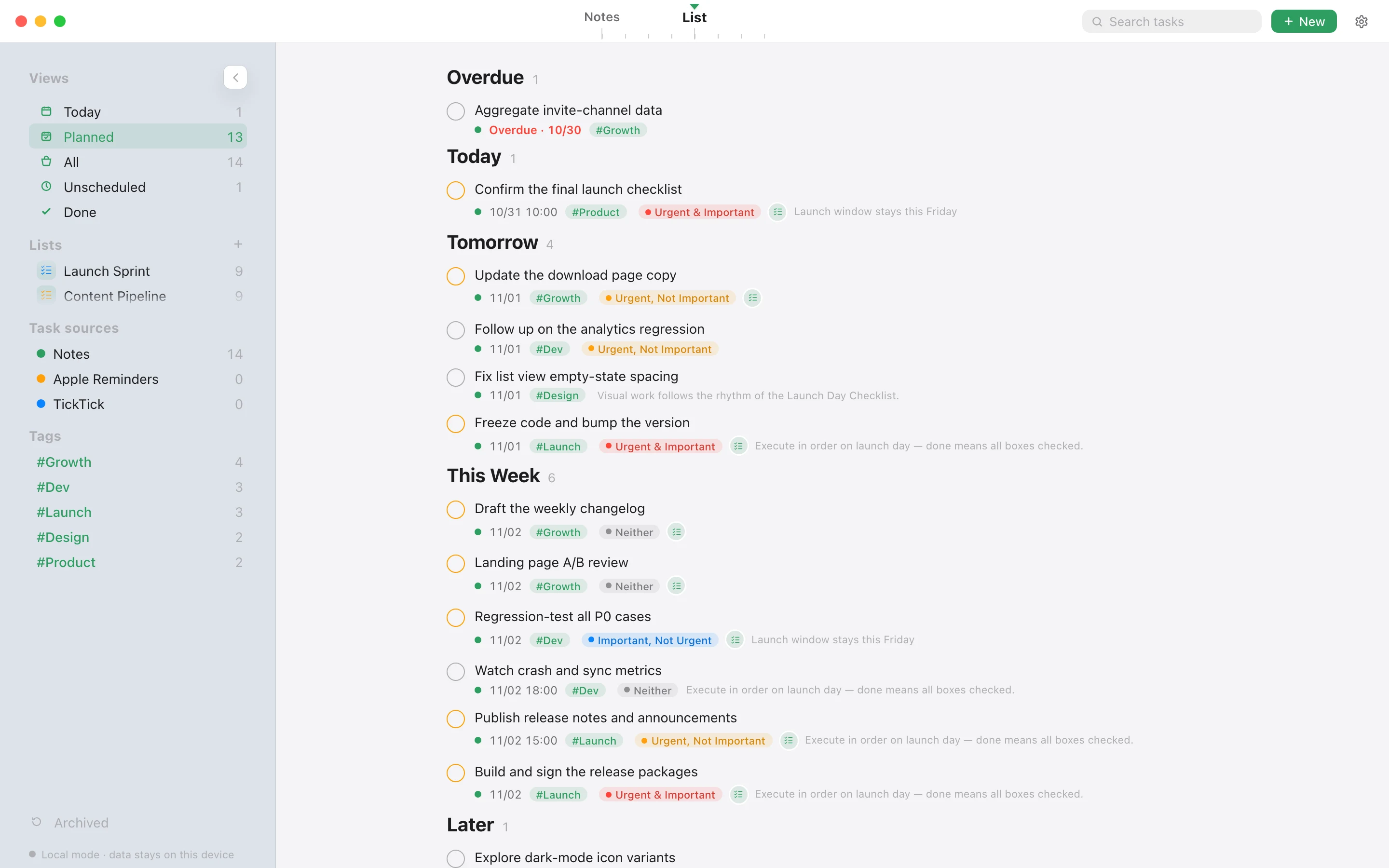
Because it works from plain text, it plays well with the tools you already use: keep writing notes in Obsidian-compatible Markdown, and let Taskstick be the view that shows you what to do next.
Download Taskstick for Mac See how it worksMarkdown task lists vs. a dedicated to-do app
A dedicated to-do app is fast to open but traps your tasks in its own store. A markdown task list keeps everything in files you own, but needs a good view to be useful. Taskstick is built to be that view: local-first, no account, and free for the local features — so the checklist in your notes finally behaves like the list you keep in an app, without giving up the plain-text file.
Frequently asked questions
What does a markdown task list look like?
A hyphen, a space, and a pair of square brackets: - [ ] for a task to do and - [x] for one done. It's plain text, so it stays readable in any editor and renders as clickable checkboxes on GitHub and in Obsidian.
Does a markdown task list work in Obsidian?
Yes. Obsidian recognizes - [ ] lines in reading view and can query unchecked tasks across a vault. Taskstick reads the same .md files, so you can keep writing in Obsidian and use Taskstick as the list view.
How do I turn a markdown task list into a real checklist?
Open your Markdown vault in Taskstick on your Mac. Every - [ ] line becomes a task in one list, and ticking a task in the list writes - [x] back into the note automatically.
Is a markdown task list better than a to-do app?
It keeps your tasks in files you own instead of a proprietary store, so nothing is locked in. The trade-off is that you need a good view to act on them — which is what Taskstick provides, without creating a second source of truth.
Do I need an account to use Taskstick?
No. The local app is free forever with no sign-up. There's no login wall between you and your own notes.
Which macOS versions does Taskstick support?
Taskstick requires macOS 13 or later and runs natively on both Apple Silicon (M-series) and Intel Macs.